Software Setup#
To build an ESPHome firmware, you have to create a YAML based configuration file. You can use one of the example configuration files provided in this repository as a starting point and adapt it to your needs.
In principle, there are two ways to build the ESPHome firmware:
Which method you should choose depends on how familiar you are with ESPHome and whether you prefer to work with a graphical user interface or the command line. In addition, the performance of the host on which you are building the firmware could play a role in speeding up the process.
Note
It is not necessary to fork this repository and do the adaptations to the example configuration directly inside the forked repository. Instead, it is sufficient to save and adapt the example configuration locally or store it on your Home Assistant host (if you wish to build the ESPHome firmware with the ESPHome Device Compiler add-on).
The following sections describe the most notable components contained in the firmware configuration file.
Ferraris Component#
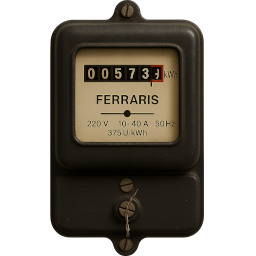
The Ferraris component (ferraris) is the base of the Ferraris platform and must be added in order to use its sensors, actors and actions.
As this is a custom component which is not part of ESPHome, it must be imported explicitly. The easiest way is to load the component directly from this repository.
Example#
external_components:
  - source: github://jensrossbach/esphome-ferraris-meter
    components: [ferraris]
Hint
In the above example, the newest version of the component from the main branch of the repository is loaded. However, I recommend using a version number to refer to a released version in order to have more control over which software version is used and to be able to react better to “breaking changes”. See the example configuration for how this can be done.
The following common configuration items can be configured:
Option |
Type |
Required |
Default |
Description |
|---|---|---|---|---|
|
no [1] |
- |
Ferraris component instance |
|
|
Number |
no |
75 |
Number of rotations of the turntable per kWh (that value is usually noted on the Ferraris electricity meter) |
|
Number |
no |
10 |
Duration of the interpolation interval in seconds or |
|
no |
400 |
Minimum time in milliseconds between falling and subsequent rising edge to take the rotation into account, see section Debounce Threshold for details |
|
|
no |
- |
Number component whose value will be used as starting value for the energy counter at boot time |
|
|
Number |
no |
60 |
Maximum time in seconds to wait for the starting value before the energy counter sensor provides the first value |
The following configuration items are only relevant, if the digital output of the infrared sensor is used:
Option |
Type |
Required |
Default |
Description |
|---|---|---|---|---|
|
yes [3] |
- |
GPIO pin to which the digital output of the TCRT5000 module is connected |
The following configuration items are only relevant, if the analog output of the infrared sensor is used:
Option |
Type |
Required |
Default |
Description |
|---|---|---|---|---|
|
yes [3] |
- |
ADC sensor which reads out the pin connected to the analog output of the TCRT5000 module |
|
|
Number / ID |
no |
50.0 |
Threshold value for the detection of rotations via the analog input, see section Calibration of the analog Output Signal for details |
|
Number / ID |
no |
0.0 |
Negative offset to the analog threshold for the falling edge, see section Hysteresis Curve for details |
|
Number / ID |
no |
0.0 |
Positive offset to the analog threshold for the rising edge, see section Hysteresis Curve for details |
|
Boolean |
no |
|
Specifies if the automatic calibration of the analog output signal from the infrared sensor will be started after boot, see section Calibration of the analog Output Signal for details |
|
Number |
no |
- |
The maximum time, in minutes, that has elapsed since the last detection of the rotation indicator before recalibration of the analog output signal from the infrared sensor is initiated; see section Calibration of the Analog Output Signal for details |
|
Object |
no |
see below |
Calibration parameters that will be applied for |
The following configuration items can be configured for the auto_calibration object:
Option |
Type |
Required |
Default |
Description |
|---|---|---|---|---|
|
Number |
no |
6000 |
Number of analog values to capture per calibration iteration |
|
Number |
no |
6.0 |
Minimum difference between lowest and highest analog value to accept the calibration and set the analog threshold |
|
Number |
no |
3 |
Maximum number of failed calibration iterations before giving up |
Example#
ferraris:
  id: ferraris_meter
  digital_input: GPIO4
  rotations_per_kwh: 75
  debounce_threshold: 400
  energy_start_value: last_energy_value
API/MQTT Component#
An API component is required if the ESP shall be integrated into Home Assistant. For the case that an alternative home automation software shall be used, a MQTT component has to be added instead. However, certain mechanisms such as manually overwriting the energy meter or restoring the last meter reading after a restart (see below for details) will then possibly no longer work.
Example#
See below example for the integration into Home Assistant (with encrypted API):
api:
  encryption:
    key: !secret ha_api_key
And below an example for usage with an alternative home automation software via MQTT:
mqtt:
  broker: 10.0.0.2
  username: !secret mqtt_user
  password: !secret mqtt_password
WiFi Component#
A WiFi component should be present, as otherwise the sensor values cannot be easily transmitted to another computer.
Example#
wifi:
  ssid: !secret wifi_ssid
  password: !secret wifi_password
Sensors#
The Ferraris platform provides primary sensors to expose the calculated consumption values as well as diagnostic sensors for the calibration mode. All sensors are optional and can be omitted if not needed.
Primary Sensors#
The following primary sensors can be configured:
Sensor |
Type |
Device Class |
State Class |
Unit |
Description |
|---|---|---|---|---|---|
|
numeric |
|
|
W |
Current power consumption |
|
numeric |
|
|
Wh |
Total energy consumption (meter reading) |
For detailed configuration options of each item, please refer to ESPHome sensor component configuration.
In addition to the standard configuration for sensor components, the power_consumption sensor also supports the following configuration:
Option |
Type |
Required |
Default |
Description |
|---|---|---|---|---|
|
Boolean |
no |
|
If |
Example#
sensor:
  - platform: ferraris
    power_consumption:
      name: Power consumption
      optimistic: true
    energy_meter:
      name: Meter reading
Diagnostic Sensors#
The following diagnostic sensors can be configured:
Sensor |
Type |
Description |
|---|---|---|
|
binary |
Indicates if the mark on the turntable is in front of the infrared sensor (only works in calibration mode) |
|
binary |
State of the automatic analog calibration (if running or not) |
|
binary |
Result of the latest automatic analog calibration (if successful or not) |
|
numeric |
Spectrum of the analog values (difference between lowest and highest analog value) |
For detailed configuration options of each item, please refer to ESPHome binary sensor component configuration and to ESPHome sensor component configuration.
Example#
sensor:
  - platform: ferraris
    analog_value_spectrum:
      name: Analoge value spectrum

binary_sensor:
  - platform: ferraris
    rotation_indicator:
      name: Rotation indicator
    analog_calibration_state:
      name: Analog calibration state
    analog_calibration_result:
      name: Analog calibration result
Actors#
For diagnostic purposes, the Ferraris platform provides a switch with the name calibration_mode. It can be used to set the component to calibration mode (see section calibration for further information).
Example#
switch:
  - platform: ferraris
    calibration_mode:
      name: Calibration mode
Actions#
The Ferraris platform provides various actions for setting values or controlling the behavior.
Set Energy Meter#
ferraris.set_energy_meter:
  id: <ferraris_meter_id>
  value: <meter_reading_value>
Sets the energy meter reading to the provided value
Parameter#
Parameter |
Type |
Range |
Description |
|---|---|---|---|
|
|
>= 0 |
Target value for the energy meter reading in kilowatt hours (kWh) |
Instead of a fixed numeric value, it is also possible to specify a lambda expression that returns the value to be passed to the action.
Note
Although the sensor for the current meter reading has the unit Wh (watt hours), the action for overwriting the meter reading has the unit kWh (kilowatt hours), as the analog Ferraris electricity meters usually also display the meter reading in this unit.
Set Rotation Counter#
ferraris.set_rotation_counter:
  id: <ferraris_meter_id>
  value: <rotation_counter_value>
Sets the rotation counter to the provided value
Note
The action for setting the energy meter reading indirectly also sets the rotation counter as the Ferraris component internally works with rotations and not with watt hours or kilowatt hours.
Parameter#
Parameter |
Type |
Range |
Description |
|---|---|---|---|
|
|
>= 0 |
Target value for the rotation counter in number of rotations |
Instead of a fixed numeric value, it is also possible to specify a lambda expression that returns the value to be passed to the action.
Automatic analog Calibration#
ferraris.start_analog_calibration:
  id: <ferraris_meter_id>
  num_captured_values: <nof_values>
  min_level_distance: <distance_value>
  max_iterations: <nof_iterations>
Starts the automatic calibration of the analog output signal from the infrared sensor
If the minimum difference between the lowest and highest analog values is not achieved after all values have been captured, the calibration is considered to have failed and a new run is started (until the maximum number of runs has been reached).
Parameter#
All parameters are optional and can be omitted.
Parameter |
Type |
Range |
Default |
Description |
|---|---|---|---|---|
|
|
100 … 100000 |
6000 |
Number of analog values to capture per calibration iteration |
|
|
>= 0 |
6.0 |
Minimum difference between lowest and highest analog value to accept the calibration and set the analog threshold |
|
|
1 … 10000 |
3 |
Maximum number of failed calibration iterations before giving up |