Usage Examples#
This section describes various examples of usage for the Ferraris platform.
Reading the Electricity Meter via the digital Output of the Infrared Sensor#
In this variant, the digital output of the infrared sensor is used to detect rotations of the turntable. The analog output is not required, the other pins must be connected to the corresponding pins of the microcontroller. The 3.3V output of the ESP should be used for VCC and the digital output D0 must be connected to a free GPIO pin (e.g. GPIO4, corresponding to pin D2 on the D1 Mini).
The following breadboard schematic shows an example test setup using an ESP8266 D1 Mini development board as microcontroller.
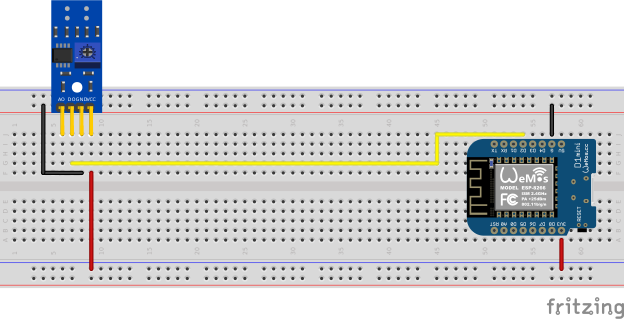
The digital output signal is calibrated using the potentiometer on the infrared sensor circuit board, see section Calibration of the digital Output Signal for details.
Hint
In case you are unable to find an appropriate and working adjustment of the potentiometer, you can alternatively use the analog output of the infrared sensor, see next section.
On the software side, the pin which is connected to the digital output of the TCRT5000 module has to be configured for the Ferraris component in the YAML configuration file:
ferraris:
  id: ferraris_meter
  digital_input: GPIO4
  # ...
Example configuration file: ferraris_meter_digital.yaml
Reading the Electricity Meter via the analog Output of the Infrared Sensor#
In this variant, the analog output of the infrared sensor is used to detect rotations of the turntable. The digital output is not required, the other pins must be connected to the corresponding pins of the microcontroller. The 3.3V output of the ESP should be used for VCC and the analog output A0 must be connected to a free ADC pin (e.g. GPIO17, corresponding to pin A0 on the D1 Mini).
The following breadboard schematic shows an example test setup using an ESP8266 D1 Mini development board as microcontroller.
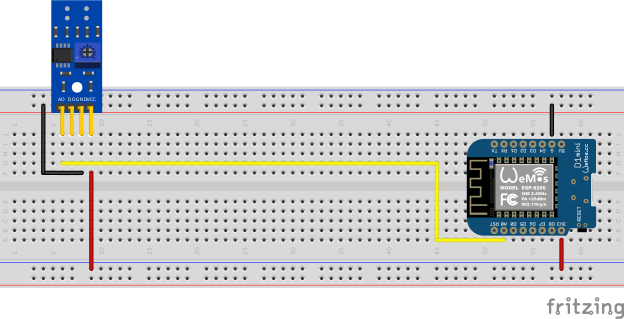
A calibration using the potentiometer on the TCRT5000 module is not needed. Instead, the threshold for the analog input and optionally the offset values for a hysteresis curve must be configured on the software side, see section Calibration of the analog Output Signal for details.
On the software side, for instance, the following configuration steps must now be carried out:
An ADC sensor is configured in the YAML configuration file, which reads out the ADC pin connected to the analog output of the TCRT5000 module.
sensor:
  - platform: adc
    id: adc_input
    pin: GPIO17
    internal: true
    raw: true
    samples: 10
    update_interval: 50ms
Under the configuration of the Ferraris component, the entry analog_input refers to the created ADC sensor and the entry analog_threshold specifies the analog threshold (see section Calibration of the analog Output Signal for further information about the analog threshold). Additionally, the offset values off_tolerance and on_tolerance can be configured (see section Hysteresis Curve für further details).
ferraris:
  id: ferraris_meter
  analog_input: adc_input
  analog_threshold: 45.0
  off_tolerance: 1.0
  on_tolerance: 1.0
  # ...
Example configuration file: ferraris_meter_analog.yaml
Reading multiple Electricity Meters#
It is also possible to read more than one Ferraris electricity meter with a single ESP microcontroller. This requires multiple infrared sensors / TCRT5000 modules and additional free GPIO pins on the microcontroller. The TCRT5000 modules have to be connected to the voltage source of the ESP microcontroller via VCC and GND and the D0 outputs have to be connected to free GPIO pins on the ESP board.
Note
Theoretically, the variant with the analog output of the infrared sensor can also be used, but the ADC-capable pins on the ESP microcontrollers are stronger limited than the pure digital pins. Especially the ESP8266, which has a single ADC only, would therefore not be suitable to support multiple infrared sensors via their analog outputs.
The following breadboard schematic shows an example of an example test setup with two TCRT5000 modules connected to an ESP8266 D1 Mini.
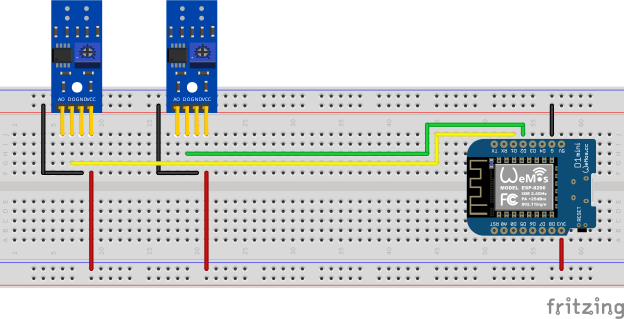
However, bear in mind that each additional infrared sensor increases the load on the microcontroller and brings the hardware closer to its limits, especially with very high rotation speeds of the turntables.
On the software side, for instance, the following configuration steps must now be carried out:
Multiple instances of the Ferraris component must be configured in the YAML configuration file (here 2 instances as an example).
ferraris:
  - id: ferraris_meter_1
    digital_input: GPIO4
    # ...
  - id: ferraris_meter_2
    digital_input: GPIO5
    # ...
All needed sensors and components provided by the Ferraris platform must be duplicated and assigned to the corresponding Ferraris component instances via the ferraris_id configuration entry.
sensor:
  - platform: ferraris
    ferraris_id: ferraris_meter_1
    power_consumption:
      name: Power consumption 1
    energy_meter:
      name: Meter reading 1
  - platform: ferraris
    ferraris_id: ferraris_meter_2
    power_consumption:
      name: Power consumption 2
    energy_meter:
      name: Meter reading 2

binary_sensor:
  - platform: ferraris
    ferraris_id: ferraris_meter_1
    rotation_indicator:
      name: Rotation indicator 1
  - platform: ferraris
    ferraris_id: ferraris_meter_2
    rotation_indicator:
      name: Rotation indicator 2

switch:
  - platform: ferraris
    ferraris_id: ferraris_meter_1
    calibration_mode:
      name: Calibration mode 1
  - platform: ferraris
    ferraris_id: ferraris_meter_2
    calibration_mode:
      name: Calibration mode 2
All other components defined in the YAML configuration file that interact with the components, sensors, actors and actions of the Ferraris platform may need to be multiplied and/or adapted.
Example configuration file: ferraris_meter_multi.yaml
Calibration#
During the positioning and alignment of the infrared sensor as well as the adjustment of the potentiometer or the analog threshold, it makes little sense to measure the rotations of the Ferraris electricity meter’s turntable and calculate the consumption values, as the changes in state of the sensor do not correspond to the actual detection of the mark on the turntable. It is therefore possible to set the Ferraris component to calibration mode by turning on the calibration mode switch (see Actors). As long as the calibration mode is activated, no calculation of the consumption data is performed and the corresponding sensors (see Primary Sensors) are not changed. Instead, the diagnostic sensor for the rotation indication (see Diagnostic Sensors) is active and can additionally be used to assist with correct alignment. The sensor has the on state when the marker on the turntable is detected and the off state when it is not detected.
To be able to use the calibration mode optimally, the components calibration_mode and rotation_indicator must be configured in the YAML file:
binary_sensor:
  - platform: ferraris
    rotation_indicator:
      name: Rotation indicator

switch:
  - platform: ferraris
    calibration_mode:
      name: Calibration mode
Calibration of the digital Output Signal#
The digital output signal of the infrared sensor must be calibrated via the potentiometer using a screwdriver; the two green LEDs on the back of the sensor help with this. The right-hand LED lights up continuously when the sensor is supplied with power. The left-hand LED lights up as long as no “obstacle” has been detected and goes out when the reflection has been interrupted. The latter is the state when the mark on the Ferraris electricity meter’s turntable moves in front of the sensor. The adjustment of the potentiometer should therefore be set so that the left-hand LED just lights up when the marker is not in the range of the infrared transmitter/receiver pair and goes out as soon as the marker moves in front of it. This is only a very small range and it can be a little difficult to find this setting.
Calibration of the analog Output Signal#
The analog output signal from the infrared sensor is calibrated either manually or automatically by the software, depending on your preference. The threshold value analog_threshold controls when the analog signal is treated as “detected” (marked area of the turntable) and when it is treated as “not detected” (unmarked area of the turntable). If the value from the ADC sensor analog_input is greater than the threshold value, the marking is considered detected; if it is smaller than or equal to the threshold value, it is considered not detected.

For manual calibration, a suitable value for the analog threshold value must be determined and configured.
If the threshold value has been determined and no longer needs to be configured/changed, a fixed numerical value can be entered for analog_threshold:
ferraris:
  # ...
  analog_threshold: 45.0
  # ...
If the threshold value is not yet known or should be modifiable later via the user interface, a template number component (or alternatively a Home Assistant number component) can be entered instead of a fixed numerical value:
ferraris:
  # ...
  analog_threshold: adc_threshold
  # ...

number:
  - platform: template
    id: adc_threshold
    name: ADC threshold
    icon: mdi:speedometer-slow
    entity_category: config
    mode: box
    optimistic: true
    initial_value: 50.0
    min_value: 0.0
    max_value: 1000.0
    step: 0.5
It is also possible to have the analog threshold value calculated automatically by the Ferraris software. This is done by calling the action start_analog_calibration (see Actions). The software analyzes a configurable number of analog samples from the infrared sensor and determines the lowest and highest analog value. The arithmetic mean of the two limit values is then calculated and used as the analog threshold value.
Additional diagnostic sensors can be configured to monitor the status and result of the automatic analog calibration. These sensors indicate whether the calibration is currently running, whether it has been successfully completed and what the determined bandwidth of the analog values is.
sensor:
  - platform: ferraris
    # ...
    analog_value_spectrum:
      name: Analoge value spectrum

binary_sensor:
  - platform: ferraris
    # ...
    analog_calibration_state:
      name: Analog calibration state
    analog_calibration_result:
      name: Analog calibration result
To start the automatic calibration from the user interface, a template button can be configured, which calls the action when pressed:
button:
  - platform: template
    name: Start auto calibration
    icon: mdi:auto-fix
    entity_category: diagnostic
    on_press:
      - ferraris.start_analog_calibration:
          id: ferraris_meter
          num_captured_values: 6000
          min_level_distance: 6.0
          max_iterations: 3
To start the automatic calibration every time the microcontroller is started, the following entry can be added to the configuration of the Ferraris component:
ferraris:
  # ...
  calibrate_on_boot: true
  # ...
To start automatic calibration if no rotation indicator has been detected for a certain period of time, the following entry can be added to the Ferraris component configuration (in the following example, automatic calibration starts as soon as no rotation indicator has been detected for one hour):
ferraris:
  # ...
  calibrate_on_stall: 60
  # ...
Another possibility is to start the calibration via an automation in Home Assistant in regular intervals or under certain conditions. For example, the following configuration steps can be carried out:
In the YAML configuration file, the action for the calibration is made accessible via the API for Home Assistant.
api:
  # ...
  actions:
    - action: start_analog_calibration
      variables:
        num_captured_values: int
        min_level_distance: float
        max_iterations: int
      then:
        - ferraris.start_analog_calibration:
            id: ferraris_meter
            num_captured_values: !lambda "return num_captured_values;"
            min_level_distance: !lambda "return min_level_distance;"
            max_iterations: !lambda "return max_iterations;"
In Home Assistant, an automation is created that calls the user-defined ESPHome action (in the following example, the calibration is started as soon as no update has been transmitted from the energy meter sensor for more than one hour).
- id: '1234567890'
  alias: Re-calibrate electricity meter
  triggers:
      trigger: template
      value_template: '{{ now() - states.sensor.ferraris_meter_energy_meter.last_updated >= timedelta(hours=1) }}'
  conditions: []
  actions:
    - action: esphome.ferraris_meter_start_analog_calibration
      data:
        num_captured_values: 6000
        min_level_distance: 6.0
        max_iterations: 3
  mode: single
Alternatively, you can simply trigger a button press of the button described above in the automation, provided it has been configured and it is not required to set the calibration parameters from Home Assistant. In this case, the creation of the action can be omitted.
Debouncing#
The transition from unmarked to marked area and vice versa on the turntable can lead to a rapid back and forth jump (“bouncing”) in the detection state of the sensor, which occurs particularly at slow rotation speeds and cannot be completely suppressed by the calibration. This bouncing of the state leads to falsified measured values and to avoid this, the following settings can be applied.
Debounce Threshold#
The debounce threshold value debounce_threshold specifies the minimum time in milliseconds between falling and subsequent rising edge. The trigger from the sensor is only taken into account if the measured time between the two edges is above the configured value. This type of debouncing can be applied to both the variant using the digital as well as the analog input signal of the infrared sensor.

To activate debouncing via the threshold value, the corresponding item must be set in the configuration of the Ferraris component:
ferraris:
  # ...
  debounce_threshold: 400
  # ...
If the value should be modifiable via the user interface, a template number component (or alternatively a Home Assistant number component) can be entered instead of a fixed numerical value:
ferraris:
  # ...
  debounce_threshold: debounce_threshold
  # ...

number:
  - platform: template
    id: debounce_threshold
    name: Debounce threshold
    icon: mdi:speedometer-slow
    entity_category: config
    mode: box
    optimistic: true
    initial_value: 400
    min_value: 0
    max_value: 2000
    step: 1
Hysteresis Curve#
The two offset values off_tolerance (switch-off tolerance) and on_tolerance (switch-on tolerance) can be configured to use a hysteresis curve for the detection of the marked area on the turntable via the analog signal. This compensates the jitter of the analog signal and thus minimizes any possible bouncing of the detection status for the marked area on the turntable. This type of debouncing only works when using the analog input signal of the infrared sensor.

To activate debouncing via the hysteresis curve, the corresponding items must be set in the configuration of the Ferraris component:
ferraris:
  # ...
  off_tolerance: 1.0
  on_tolerance: 1.0
  # ...
If the values should be modifiable via the user interface, template number components (or alternatively Home Assistant number components) can be entered instead of fixed numerical values:
ferraris:
  # ...
  off_tolerance: off_tolerance
  on_tolerance: on_tolerance
  # ...

number:
  - platform: template
    id: off_tolerance
    name: Hysteresis switch-off tolerance
    icon: mdi:speedometer-slow
    entity_category: config
    mode: slider
    optimistic: true
    initial_value: 1.0
    min_value: 0.0
    max_value: 5.0
    step: 0.5
  - platform: template
    id: on_tolerance
    name: Hysteresis switch-on tolerance
    icon: mdi:speedometer-slow
    entity_category: config
    mode: slider
    optimistic: true
    initial_value: 1.0
    min_value: 0.0
    max_value: 5.0
    step: 0.5
Smoothing of the analog Signal#
By carefully configuring the update interval update_interval and the number of samples per update (samples) for the analog sensor analog_input, the curve of the analog signal can be smoothed to such an extent that short-term fluctuations are eliminated. However, bear in mind that excessive update intervals can lead to individual rotations no longer being detected at very high rotation speeds, as the time between the rising and subsequent falling edge is then shorter than the set update interval. Also this type of debouncing only works when using the analog input signal of the infrared sensor.
Interpolation at falling Power Consumption#
Low power consumption results in a slow rotation speed of the turntable. This means that the marker on the turntable rarely passes the sensor, so the power consumption is updated only at long intervals. This is particularly problematic when power consumption is high and then drops rapidly. In this case, it takes a very long time for the new low power consumption to be reported, since it takes a long time for the mark to pass the sensor again. During this time, high power consumption continues to be displayed, even though the actual power consumption is much lower.
To counteract this effect, the Ferraris component can, during transitions from high to low power consumption, interpolate the actual consumption curve and thus progressively approximate the real power consumption until the actual power consumption is calculated and reported after the marker is detected.
Interpolation can be controlled via the interpolation interval value interpolation_interval. A value of 0 disables interpolation; otherwise, the value specifies the duration of the intervals in seconds for which an interpolated power consumption is calculated.
Explicit Meter Reading Replacement#
To synchronize the meter reading in the Ferraris component with the actual meter reading of the Ferraris electricity meter, the value of the energy meter sensor can be explicitly overwritten. The two actions ferraris.set_energy_meter and ferraris.set_rotation_counter (see Actions) are provided for this purpose.
Hint
Usually, you need to use only one of the two actions, depending on whether you want to set the meter reading in kilowatt hours or in number of rotations.
The actions can be used in different ways, depending on whether the energy meter reading is to be set manually via the user interface or trigger-based via automations and scripts. Two possible usage examples are described below, but there are more possibilities existing which are not described here.
Setting Energy Meter manually via the User Interface#
For instance, the following configuration steps are carried out (in this example to overwrite the energy meter with a kilowatt hours value):
A template number component is created in the YAML configuration file and configured for a meter reading in the unit kilowatt hours.
number:
  - platform: template
    id: target_energy_value
    name: Manual meter reading
    icon: mdi:counter
    unit_of_measurement: kWh
    device_class: energy
    entity_category: config
    mode: box
    optimistic: true
    min_value: 0
    max_value: 1000000
    step: 0.01
A template button is created in the YAML configuration file and configured so that the action for setting the energy meter or the rotation counter is executed when it is pressed. The target value to be set is retrieved from the created number component
button:
  - platform: template
    name: Overwrite meter reading
    icon: mdi:download
    entity_category: config
    on_press:
      - ferraris.set_energy_meter:
          id: ferraris_meter
          value: !lambda |-
            float val = id(target_energy_value).state;
            return (val >= 0) ? val : 0;
Setting Energy Meter automatically#
For instance, the following configuration steps are carried out:
A user-defined action is created in the YAML configuration file, which calls one of the Ferraris actions (in the following example the action ferraris.set_energy_meter is used).
api:
  # ...
  actions:
    - action: set_energy_meter
      variables:
        target_value: float
      then:
        - ferraris.set_energy_meter:
            id: ferraris_meter
            value: !lambda |-
              return (target_value >= 0)
                        ? target_value
                        : 0;
An automation is created in Home Assistant that calls the user-defined ESPHome action (in the following example, the meter reading is reset at the beginning of each month).
- id: '1234567890'
  alias: Reset energy meter reading
  trigger:
    - platform: time
      at: 00:00:00
  condition:
    - condition: template
      value_template: '{{ now().day == 1 }}'
  action:
    - action: esphome.ferraris_meter_set_energy_meter
      data:
        target_value: 0
  mode: single
Meter Reading Recovery after Restart#
In order not to reduce the service life of the flash memory on the ESP microcontroller, the Ferraris component does not store any data persistently in the flash. As a result, it cannot remember the meter reading after a restart of the microcontroller and the meter starts counting at 0 kWh with every boot process. Therefore, the meter reading would have to be overwritten manually with a value read from the Ferraris electricity meter after each restart. As this is not very user-friendly, there is the option of persisting the last meter reading in Home Assistant and transferring it to the microcontroller when booting.
For this to work, the following configuration steps must be carried out:
A number input helper is created in Home Assistant (in this example with the entity ID input_number.electricity_meter_last_value). After that, a Home Assistant number component is created in the YAML configuration file, which imports the created number input helper
number:
  - platform: homeassistant
    id: last_energy_value
    entity_id: input_number.electricity_meter_last_value
Under the configuration of the Ferraris component, the entry energy_start_value refers to the created number component.
ferraris:
  # ...
  energy_start_value: last_energy_value
An automation is created in Home Assistant that copies the current sensor value to the created number input helper. when the energy meter sensor is changed.
- id: '1234567890'
  alias: Update meter reading cache
  trigger:
  - platform: state
    entity_id:
      - sensor.ferraris_meter_energy
  condition: []
  action:
  - action: input_number.set_value
    target:
      entity_id: input_number.electricity_meter_last_value
    data:
      value: '{{ states(trigger.entity_id) }}'
  mode: single
Alternatively, a sensor automation can be created for the sensor energy_meter in the YAML configuration file which updates the created number component directly from ESPHome. However, this leads to a longer processing time per rotation in the microcontroller and may result in individual rotations of the turntable not being detected in the event of very high power consumption (and hence, very high rotation speeds). Therefore, I recommend the variant with the automation in Home Assistant.